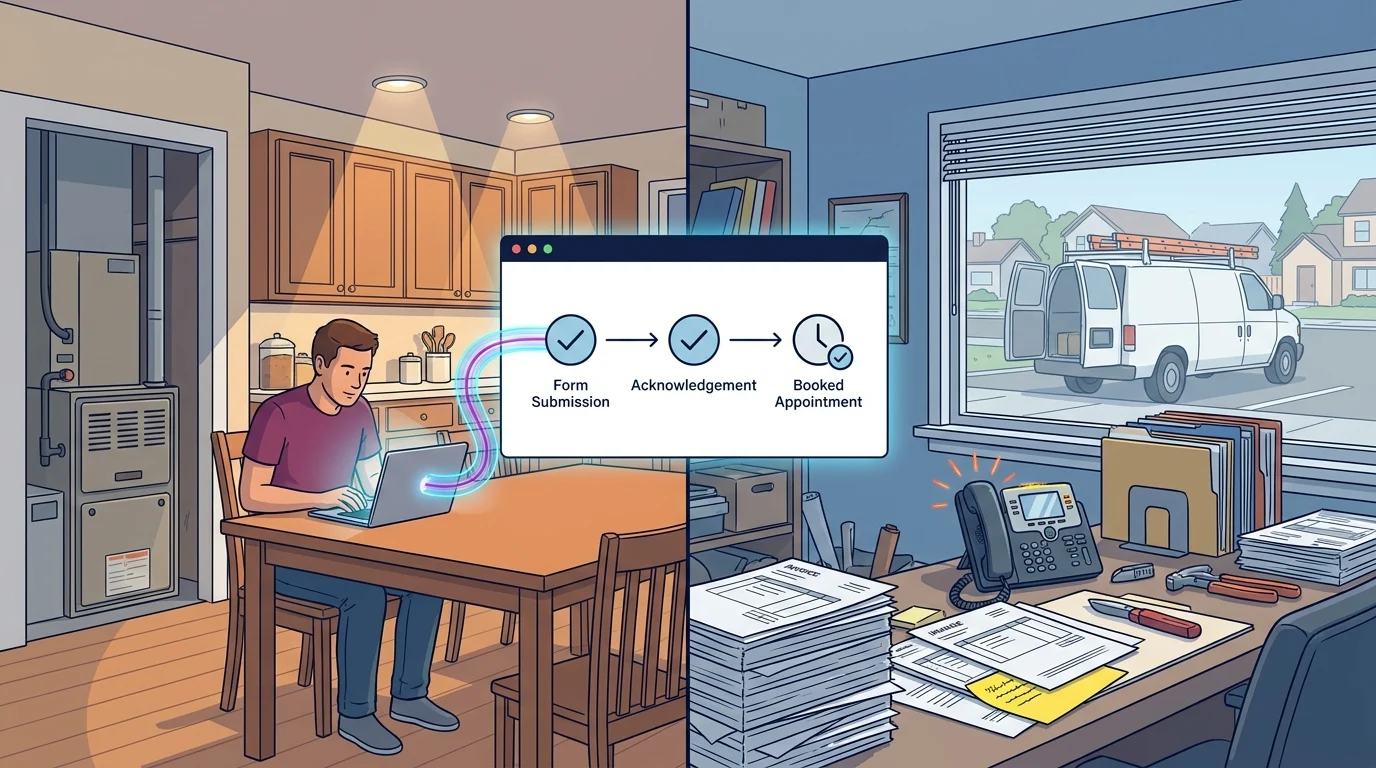

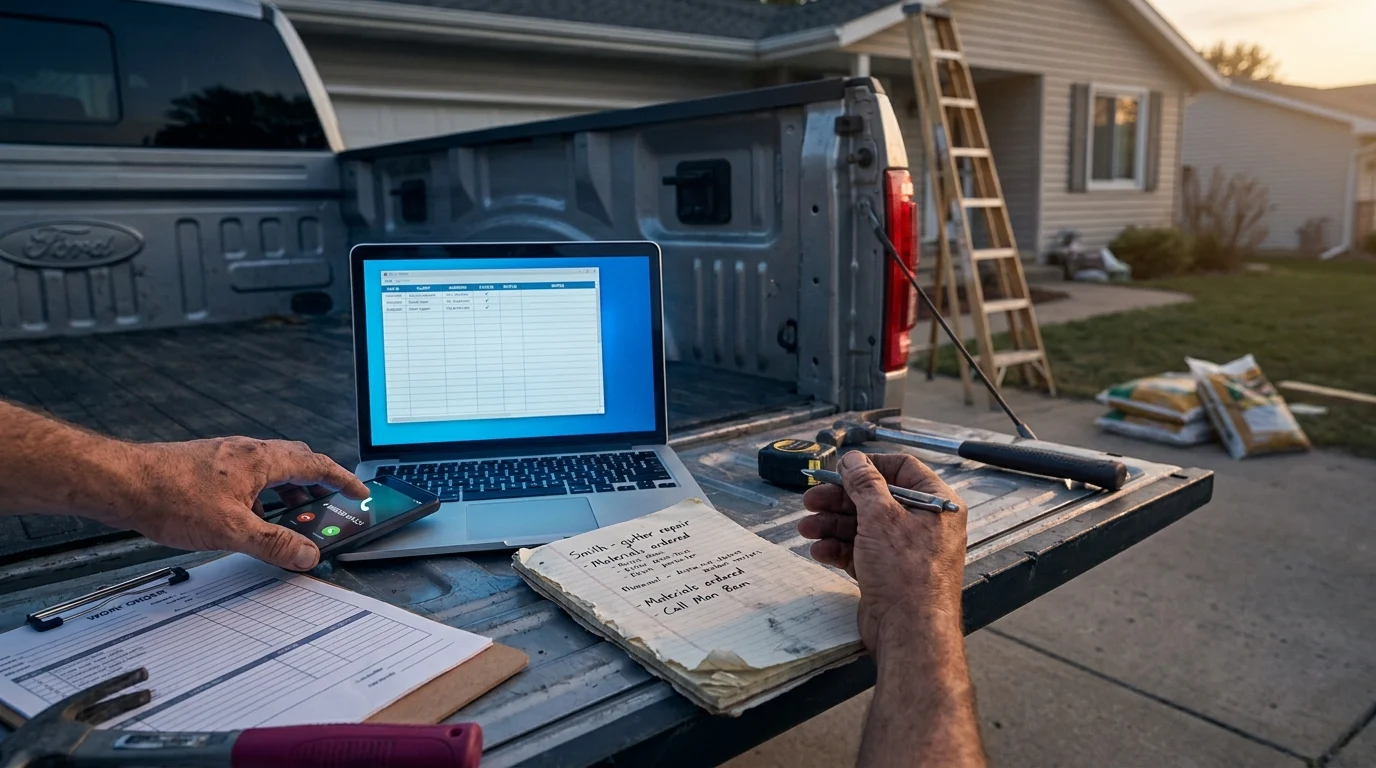
Imagine a hypothetical afternoon: you’ve finished a service call, loaded the truck and found 3 messages waiting. There’s a voicemail about a replacement, a social media enquiry and a text about last week’s quote. An urgent call interrupts the catch-up. By supper, the quote question has slipped off your list.
For busy operators serving Kingsville, Ontario and the Windsor-Essex Region, a simple follow-up system can make those unfinished conversations visible. Each enquiry gets a record, a responsible person and a dated next action. The $0 setup means using tools you already have without buying added software. Setting it up and maintaining it still takes staff time.
Give Every Enquiry a Home and an Owner

Follow-up can become difficult when details live in separate places. A measurement sits in a notebook, an estimate lives in email and a timing question waits in a text thread. A shared tracker gives staff a starting point while the original messages and job documents remain available for reference.
Choose an existing spreadsheet or another shared tool your team already uses. The owner or office lead should maintain the tracker’s structure and decide who covers incoming enquiries. Each assigned person handles their own next actions and updates the record. A sole operator can hold both roles, with a short daily review to separate administration from field work.
Start with these columns. Assigned person and Next-contact date belong in the initial setup so responsibility and timing are visible from the first entry:
- Enquiry ID and date received: a unique reference and the original arrival date.
- Customer and contact details: name, relevant service address and verified phone number or email.
- Source and preferred channel: where the enquiry arrived and how the customer wants replies.
- Requested work and document reference: brief scope plus a link or reference to messages, photos and any quote version.
- Status: New, Awaiting details, Quote sent, Awaiting decision, Deferred, Booked or Closed.
- Assigned person: 1 named staff member responsible for the next action.
- Next action and Next-contact date: the specific task and when it should happen.
- Last contact and outcome: date, channel, what happened and any delivery issue.
- Communication preferences: requested timing, reminder agreement and any stop request.
- Closure reason and date: why the enquiry ended and when the record was updated.
Keep notes factual and limited to information needed for the enquiry. Restrict access to staff who need it, and use your existing secure storage for documents. Avoid copying sensitive customer details into calendar titles or broadly shared notifications.
Set Up the List Around Work Already Waiting

1. Gather and Reconcile Open Enquiries
Use your inbox, voicemail, texts, social messages, estimate files and paper notes as inputs. Compare them with the appointment calendar and recent customer replies before entering anything. Match the customer, address and scope to catch duplicate conversations about the same request. Separate genuinely different projects into different rows.
Enter the known details and label missing information clearly. If the quote version is uncertain, make “Confirm current quote with estimator” the next action. Check whether a customer has already accepted, declined or asked to wait. An unanswered enquiry remains an enquiry until acceptance and scheduling have been confirmed.
Past-customer reminders need a clear reason and a check of recorded communication preferences. A requested check-in about deferred repairs can have its own row referencing the earlier work. Keep general promotional outreach separate from this enquiry workflow, and leave out contacts who’ve asked you to stop.
2. Assign the Action Before Sorting the Queue
Using the customer’s latest message, staff availability and current job details, fill in Assigned person, Next action and Next-contact date. “Jamie to email the revised scope after the estimator checks measurements” is actionable. Add an internal check date if another person’s input is needed before the customer can receive an answer.
Freeze the header row if your tool allows it. Filter out Booked and Closed records, then sort active rows by Next-contact date, earliest first. Group or filter by Assigned person to show each person’s queue. Review urgent service requests separately using your normal intake process; a routine reminder list shouldn’t become the emergency dispatch queue.
Here’s a hypothetical tracking entry: “E-014; received May 5; Alex; email preferred; garage-door replacement; quote Q-014 version 2; Awaiting decision; assigned to Jamie; ask whether the revised options need clarification; next contact May 8; last contact May 6, quote emailed; email delivery unconfirmed.” The document reference lets Jamie check the actual options before writing.
3. Set an Adjustable Contact Rhythm
Use the customer’s stated decision date and your last contact as the starting inputs. For routine quoted work, an adjustable example is a receipt check after 2 business days, a question-focused check around day 7 and a closing check around day 14. Choose fewer contacts or a longer interval when the customer’s plans call for it.
If the customer asks for a check-in next month, record that date and pause earlier reminders. When there’s no agreed timing, choose a reasonable review point suited to the enquiry. Spread overdue actions across realistic staff capacity while keeping any promised callbacks visible. Record revised dates and the reason for moving them.
If you already use a calendar, add a reminder containing the enquiry ID and task. Keep the tracker as the main record, and update both when timing changes. Avoid adding several reminders for the same action across different tools.
Send Useful Messages and Check What Happened
Before sending, check the current quote, unresolved question, preferred channel, last outcome and any stop request. Each message should have a specific purpose. Offer clarification you can provide, and verify availability before mentioning appointment options.
A hypothetical quote-check message could read: “Hi Alex, I’m checking whether you received the revised garage-door quote sent May 6. Would a comparison of the 2 options help? Let us know if you’d prefer a later check-in.” Adapt the wording to the actual enquiry and remove questions the customer has already answered.
For a hypothetical requested service reminder: “Hi Morgan, you asked us to check back this month about the deferred repair. Would you like us to review the scope and current appointment options?” Confirm the earlier request before using this template. Templates can save typing while leaving room for the customer’s circumstances.
After sending, enter the date, channel and outcome. A sent message alone doesn’t confirm delivery or receipt. Check for bounced email, failed text notices, an unavailable mailbox or a rejected social message. Record the exact issue and verify the contact detail against the original enquiry before retrying.
Use another channel only when it fits the customer’s recorded preferences. If the details remain unusable, set an internal review action rather than repeatedly resending. For a hypothetical entry, the outcome might become “May 8: email bounced; Jamie to verify address against original form May 9.” This makes the delivery problem visible to anyone covering the queue.
Handle Handoffs and Close Enquiries Clearly
Ownership changes need the latest conversation, document reference and next action. The departing owner updates those fields, names the replacement and confirms that person has accepted the handoff. The new owner checks outstanding promises before contacting the customer. Until acceptance is confirmed, the current owner or office lead remains responsible for coverage.
Record a short dated note such as this hypothetical example: “May 10: Priya accepted ownership from Jamie; customer requested revised dimensions; reply planned May 12.” Move the related calendar reminder and remove the old owner’s duplicate task. Customers shouldn’t have to reconstruct the conversation because staff responsibilities changed.
Close each enquiry according to its actual outcome. For accepted work, verify the agreed scope and appointment arrangements, mark it Booked and reference the job record. For a requested delay, use Deferred with the agreed next-contact date. A declined enquiry can be Closed with a brief reason and closure date.
After an appropriate final check with no reply, use Closed with “No response after planned follow-up” as the reason. Remove future reminders. A customer’s stop request should be recorded promptly and passed to anyone handling messages. If the customer returns later, reopen the record, recheck scope and availability, and assign a fresh next action.
Protect a Short Daily and Weekly Review

Start with an adjustable 10-minute daily review. Each assigned person checks new replies, due actions and failed messages, then records outcomes. The office lead checks for unassigned rows and arranges coverage for absent staff. Increase or split the review time if the queue needs more attention.
At a weekly review, use the tracker, calendar and job records together. Check overdue dates, blank owners, unresolved delivery failures and deferred enquiries that are due again. Reconcile Booked entries with confirmed arrangements. Confirm that Closed records have reasons and that cancelled reminders stay cancelled.
Look for operational friction: duplicated replies, missing quote versions or questions that repeatedly require an estimator. Choose 1 practical adjustment for the following week, such as clearer quote wording or a backup owner. If tasks keep slipping, match the queue to available time before adding more outreach.
A useful follow-up system leaves each conversation with a clear next step or a recorded ending. If scattered messages and uncertain ownership are making that difficult, book a free consultation to discuss a follow-up routine that fits your trades business.
Paul Hughes founded Doorways Into Your Business after more than five decades consulting across 30+ countries, from implementing early IBM email systems in the 1980s to running multi-million-dollar IT projects for global organizations. A St. Clair College graduate (1976), he settled in Kingsville, Ontario in 2019 to help local small businesses grow with practical “smart digital doorways”, websites, customer service, reviews, bookings, and payments, matched to what a business needs, not unnecessary technology.
All articles by Paul →