
Someone searches for the service you sell, checks your hours, then phones another business because your listing leaves them guessing. You could have handled the job. The customer simply found a clearer route elsewhere. Business marketing in Leamington, Ontario starts with those small buying moments: a resident comparing repair options, a visitor choosing lunch, or someone checking whether the drive is worth it. A Smart Digital Doorway connects that attention to useful answers, credible proof and a clear next step. Before spending money on another promotion, identify which decisions bring customers through your door and where your current digital presence leaves a question unanswered. That gives your next improvement a specific job.
Leamington Ontario Business Marketing Starts With Local Buying Patterns
Residents, seasonal visitors and customers travelling from Kingsville, Ontario and the Windsor-Essex Region can arrive with different questions. Treat these as buying situations to check against your own enquiries. The useful distinction is what someone needs to know before they’ll choose you.
Residents: Solve the Immediate Need
A resident with a leaking pipe needs service coverage, availability and a working phone number. Someone planning a bathroom renovation needs examples, scope and a quote process. Both might search for a plumber, but their decision timelines differ.
Prioritize urgent searches if your business can answer promptly and fulfil short-notice work. For planned purchases, give your Smart Digital Doorway enough detail to help someone judge fit before making an enquiry.
Seasonal Visitors: Make Choosing Easy
Visitors may be choosing between unfamiliar businesses while working around a day’s itinerary. Current hours, clear prices, recent photos and parking information help them decide whether a stop fits.
For a hypothetical café, a readable menu and accurate holiday hours could answer the immediate questions. A hypothetical equipment rental shop would need availability information, pickup requirements and return times. Match the answers to the purchase.
Travelling Customers: Justify the Trip
Someone driving in needs confidence that the product, service or appointment will be available. Show how to confirm stock or request a booking before departure. Keep a requested appointment distinct from a confirmed booking.
Start with the buying moment you can serve reliably this week. Ask recent customers what they checked before choosing you, then compare their answers with questions arriving by phone and email. Record the purchase they wanted, their timing and the missing information. Those notes help you choose whether to fix availability details, explain your offer or make the enquiry process easier first.
Build Smart Digital Doorways Where Local Customers Look First
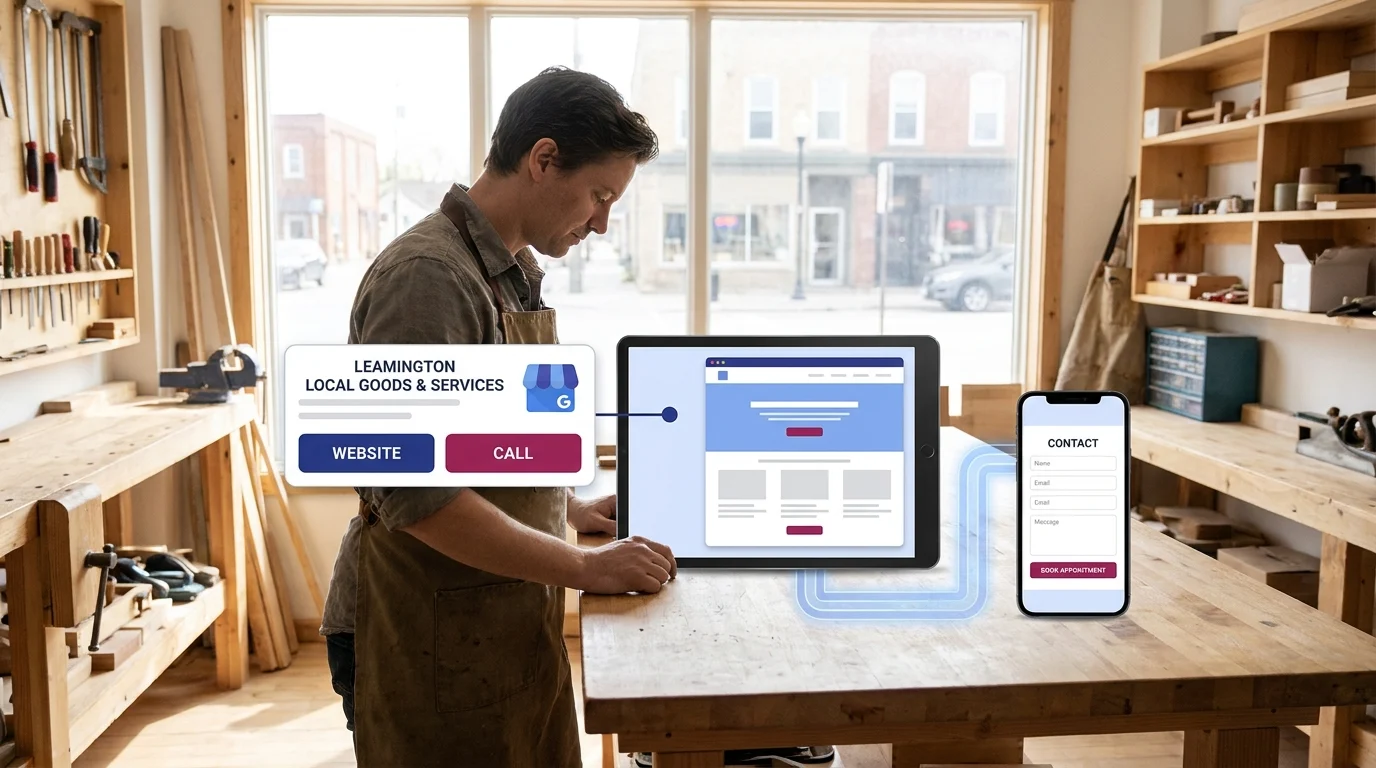
A Google listing, a relevant website page and a working mobile contact option should operate together. For business marketing in Leamington, Ontario, that connection gives someone a clear path from finding you to deciding whether to buy.
Connect Google Discovery to the Right Page
Start with Google Business Profile. Choose the primary category that best describes your core business, complete the relevant services and check that your business name and phone number match your website.
For a single-location business, a homepage focused on that location can be the right destination. Businesses with several genuine locations should connect each profile to its corresponding location page. Keep profile details accurate, including whether customers can visit your premises.
Give the Location Page a Clear Job
The page should explain what you offer, who it suits and what happens after someone contacts you. Add evidence customers can assess: original project photos, relevant credentials and customer reviews used with permission.
If you serve a town without premises there, describe your service coverage honestly. Publish a dedicated service-area page when you have useful, distinct information to share. Replacing town names across otherwise identical pages adds little value for customers.
Test the Mobile Contact Route
Use a tap-to-call button when staff can answer enquiries. A short form suits requests that need photos or project details. Ask only for information needed to respond, and explain how you’ll use it.
Test both routes on your phone, including form delivery and confirmation messages. Together, these touchpoints form a Smart Digital Doorway: the profile attracts attention, the page answers questions and builds trust, and the contact route captures leads your team can help become paying customers.
Give Every Local Enquiry a Clear Route to Purchase
An enquiry can stall when a customer has to chase availability, clarify what’s included or wonder whether anyone received their request. The Digital Presence Opportunity extends through that waiting period. Your Smart Digital Doorway needs a clear handoff to whoever handles the sale.
Make Availability and Scope Useful
Publish current lead times, booking restrictions and any conditions that affect whether you can take the work. Assign someone to update them when capacity changes. If availability requires confirmation, say that beside the enquiry button.
Explain the details buyers need before committing: minimum charges, what an estimate includes, materials supplied and exclusions. Where pricing depends on inspection, describe what you need to assess and whether that visit carries a fee.
Answer the Last Questions Before Submission
Place a relevant review near the decision point. A review describing communication, scheduling or how a problem was handled can address a specific concern. Preserve the reviewer’s meaning and identify the source clearly.
For appointment-based services with reliable calendar availability, a booking tool such as Calendly can let customers select a slot. For variable jobs requiring assessment, a form built with WPForms gives staff room to review the request before offering a quote. Keep optional questions visibly optional.
Give Follow-Up an Owner
Assign a primary responder and backup. Set an achievable response window, then include it in the confirmation. An adjustable example is a personal reply within 1 business day.
That reply should answer the question and establish the next step. Track enquiries, issued quotes, booked appointments and accepted paid work separately. Those distinctions show where customers are waiting and which handoffs need attention.
A Windsor-Essex Region Business Example: Turning Local Searches Into Bookings
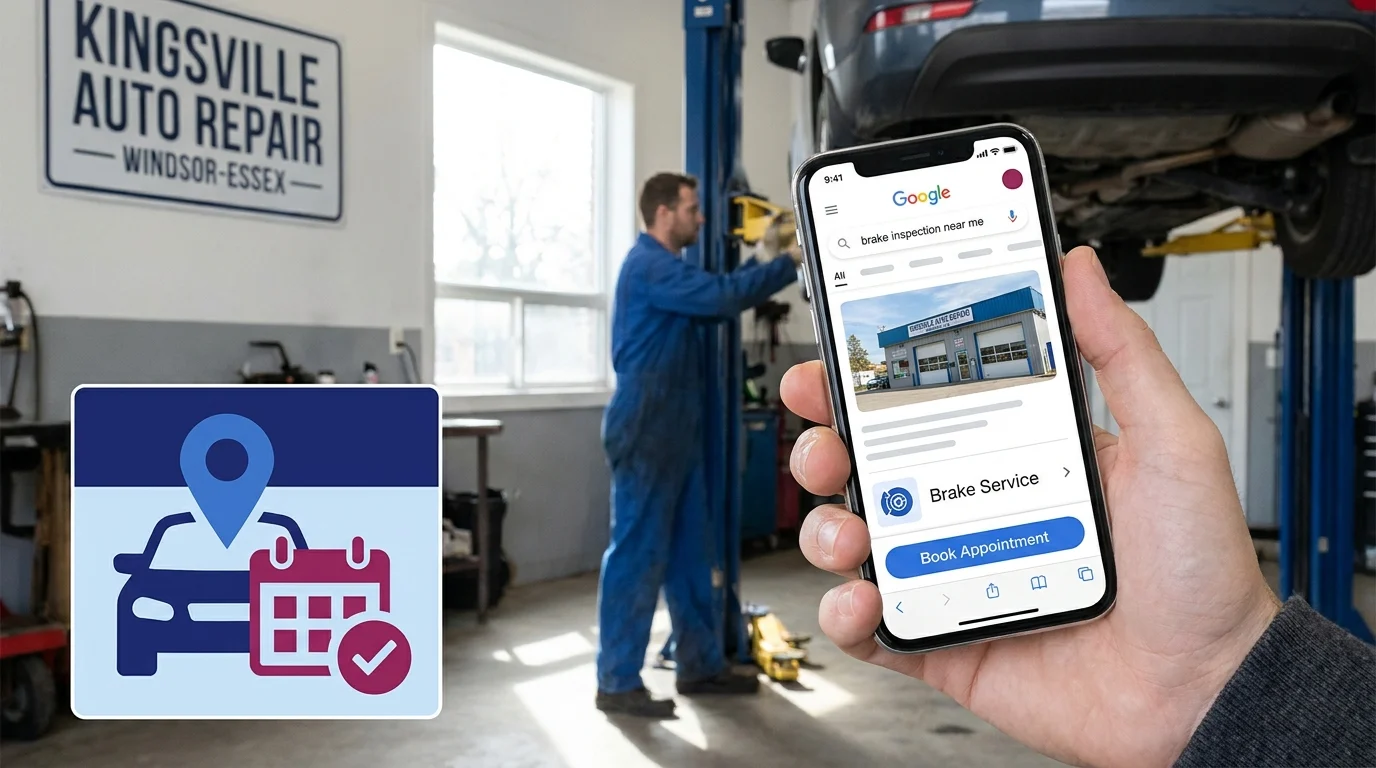
Consider this hypothetical example: an auto repair shop serving Kingsville, Ontario and the Windsor-Essex Region. A driver searching from a neighbouring town hears a grinding noise when braking and needs help deciding what to do next.
The journey below illustrates a possible booking path. It describes no actual customer, shop performance or measured result.
The Search Opens the Door
The driver searches Google for “brake inspection near me.” Suppose the shop’s Google Business Profile appears. Its brake service category, opening hours and exterior photo help the driver recognize a potentially suitable shop.
The profile leads directly to a brake inspection page. That Smart Digital Doorway carries the question forward: can this shop assess the problem, and how does the driver arrange that?
The Page Supports a Safe Next Step
The page explains what a brake inspection covers without diagnosing the noise remotely. A prominent safety note advises drivers with impaired braking to stop driving and arrange roadside assistance.
A tap-to-call button suits someone who needs immediate guidance during staffed hours. A short inspection request form suits someone submitting details after closing. Both routes feed the same shop intake process.
The Enquiry Becomes a Confirmed Appointment
The driver submits their vehicle details, symptoms and preferred appointment window. The acknowledgement identifies the submission as an inspection request awaiting confirmation.
A service adviser reviews it, discusses safe vehicle arrival and offers an available inspection slot. Once the driver accepts and the shop confirms, there’s a booked appointment.
Any repair recommendation, quote and authorization follow the inspection. The doorway has supported a specific decision: arranging an assessment. Revenue depends on the work the customer subsequently authorizes, keeping the booking outcome honest and useful.
What To Do Monday Morning
Test the Journey on Your Phone
Start with your phone on mobile data. Find your business through Google, open the relevant service page and attempt an enquiry. Check whether buttons work, text stays readable and confirmation arrives. Label any submission “test” so it stays outside your reporting.
Write down each snag in the order you encounter it. Ask someone unfamiliar with the website to repeat the task without coaching.
Correct Details and Remove One Obstacle
Compare your business name, address, phone number and hours across Google Business Profile, your website and Facebook. Correct conflicting details, including holiday hours. Keep a dated checklist of changes awaiting platform approval.
Fix the obstacle most likely to block an enquiry first. A broken submission button deserves attention before a new banner photo. If the form demands information you can collect during a conversation, remove that requirement and test again.
Assign Ownership and Record Outcomes
Create a tracker with these fields: enquiry ID, received date, source, assigned owner, next action, action due date, current stage and date paid work was accepted. Use separate stages for new enquiry, quote sent, appointment booked, paid work accepted and closed without purchase.
Google Sheets suits a shared queue with limited handoffs. A CRM such as HubSpot suits teams needing assigned tasks and reminders. Give each enquiry one response owner and arrange backup coverage. Set an achievable response target around staffed hours.
Review weekly intake by received date. Count enquiries, quotes, appointments and accepted paid work separately. Calculate the share of that intake reaching accepted paid work, then revisit pending enquiries as decisions arrive. This gives your Smart Digital Doorway a baseline grounded in recorded customer decisions.
Key Takeaways
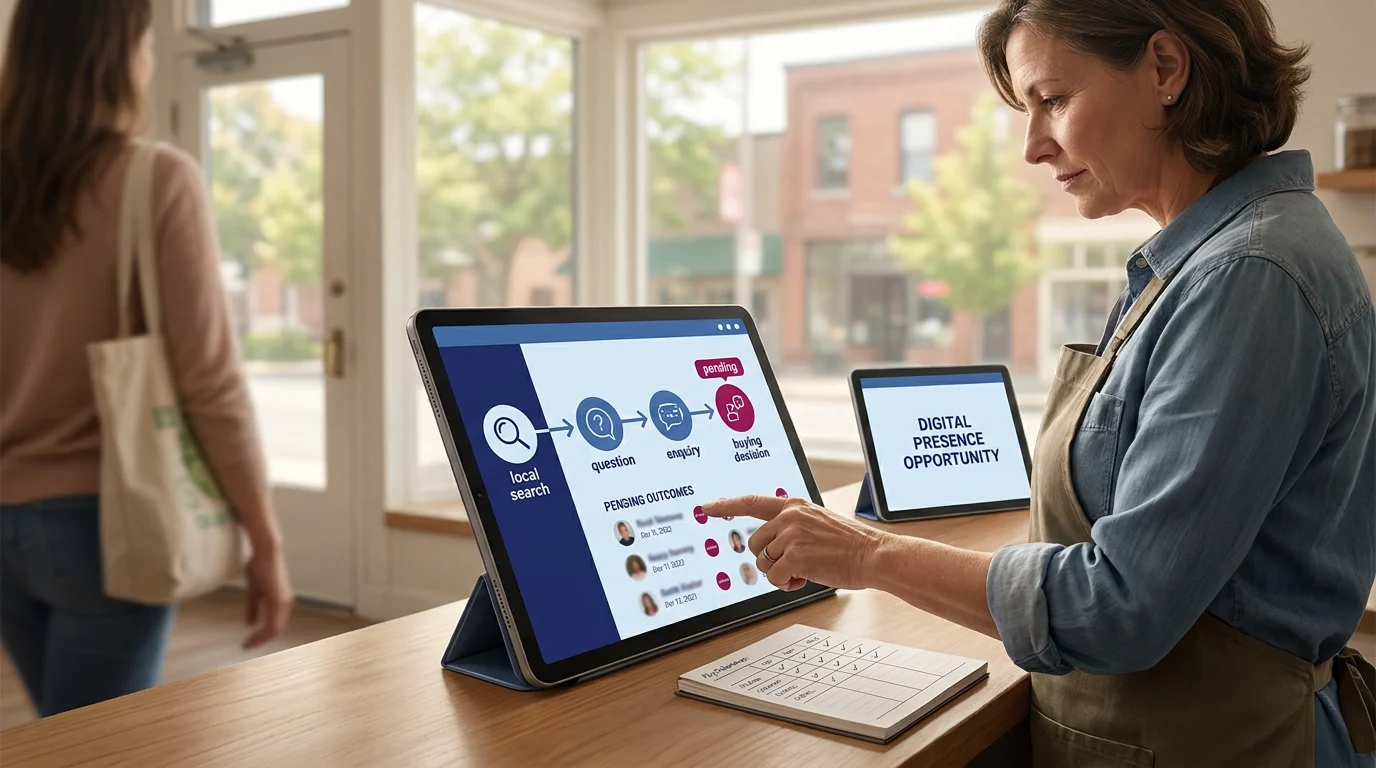
A useful Smart Digital Doorway carries someone from a local search through a question, an enquiry and a buying decision. Its strength depends on how well those handoffs hold together when you’re busy serving customers.
For business marketing in Leamington, Ontario, that means giving the next customer enough confidence to proceed, then making sure someone takes responsibility when they do. Doorways Into Your Business frames that connected system as a Digital Presence Opportunity.
Your first week’s records will probably leave some outcomes pending. Keep those visible. As decisions come in, you’ll have a clearer view of where people pause and which changes deserve another test. A manageable routine of testing, assigning and reviewing gives the owner a practical way to decide where the next hour of improvement work belongs.
Want this fitted rather than figured out? Doorways Into Your Business helps owner-operators put systems like this in place. Book a free consultation.
Paul Hughes founded Doorways Into Your Business after more than five decades consulting across 30+ countries, from implementing early IBM email systems in the 1980s to running multi-million-dollar IT projects for global organizations. A St. Clair College graduate (1976), he settled in Kingsville, Ontario in 2019 to help local small businesses grow with practical “smart digital doorways”, websites, customer service, reviews, bookings, and payments, matched to what a business needs, not unnecessary technology.
All articles by Paul →